

Microsoft lets you evaluate all kinds of products before using them in production. The Evaluation Center offers downloads for products like Windows Server 2016 or 2019. For the server operating systems, the folks in Redmond give you 180 days to test the version and see whether it meets your needs. There are no restrictions on features or anything like that. Something that was new to me as well: you can extend the trial period with a simple command in the Command Prompt or PowerShell.
At least 360 days
With the command “slmgr -rearm“, which you enter in the Command Prompt or Windows PowerShell (run as administrator), you can extend your Windows Server version by another 180 days after the first trial period. I was able to confirm that. You should do the extension before the trial period expires, though. Otherwise the extension you get afterwards can turn out to be much shorter, which I haven’t been able to test yet.
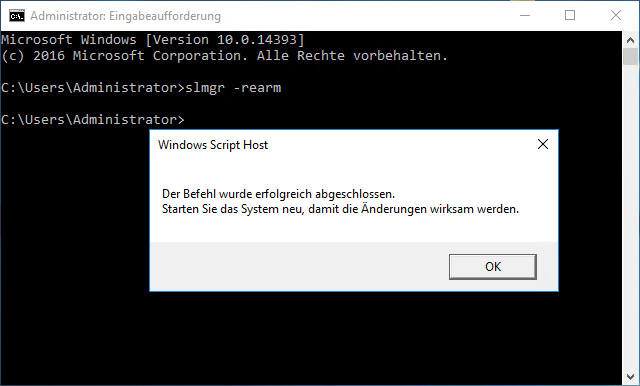
After entering the command, you need to restart the Windows server. If you let the trial period run out, however, the Windows server shuts down every hour. At least that gives you the chance to back up your data if needed. A notice in the bottom right corner of the desktop background constantly reminds you of the days left in the evaluation period, though, so you can easily avoid that.

Update 2026: The Evaluation Center now also offers Windows Server 2022 and 2025, again as a 180-day evaluation. How many times slmgr -rearm works can differ between versions, so it’s best to check the license status of your installation with “slmgr /dlv” before you rely on it.
You can activate it at any time
Even after or during the trial period, you can activate your Windows Server version with a valid product key. However, you can’t activate a Windows Server 2016 evaluation version with a Windows Server 2019 product key. The product key has to match the respective version. The exception is a Windows server acting as a domain controller. Unfortunately, it can’t be converted from the evaluation to a full version. According to Microsoft, you have to set up another domain controller on a retail version instead, move the FSMO roles to it and then remove Active Directory Domain Services from the evaluation server.
This post is also available in:  Deutsch
