
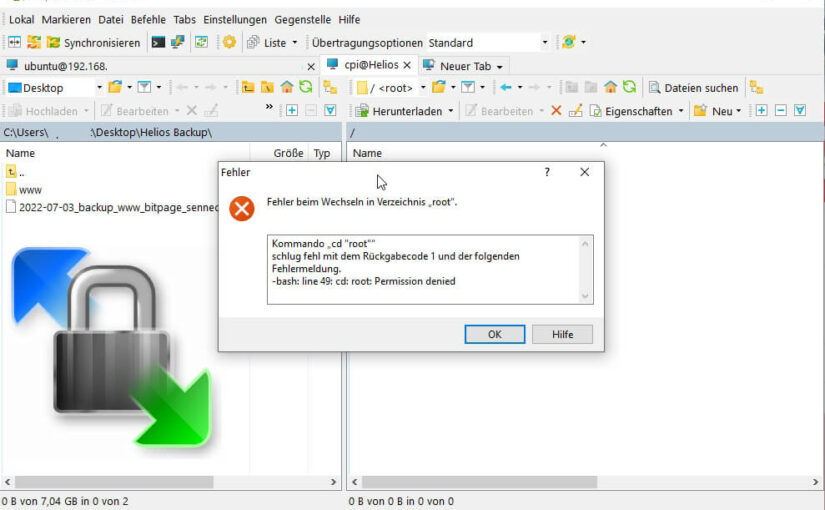
If you secure your Linux-based server and don’t allow the “root” user to log in directly, you have to change one connection setting in WinSCP. Otherwise you keep running into problems whenever your permissions aren’t sufficient. The prerequisite, of course, is that the user you connect with is allowed to use “sudo”.
Step by step
- If you don’t have one yet, create a new connection.
- Important: Choose SCP as the file protocol. For the way described here, that’s the simplest option. SFTP works too, but needs a different setting, see the update at the end.
- Enter the host name (bitpage.de in my example) and the user name. If you don’t authenticate with an SSH key, enter your password as well.
- Then click the “Advanced” button.
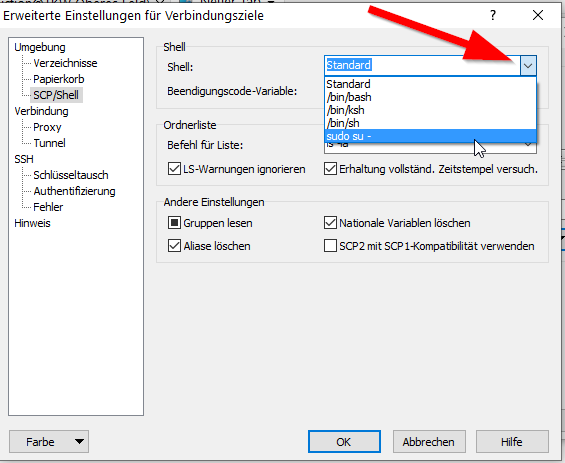
- In the configuration menu on the left, click “SCP/Shell” below “Environment”.
- In the dropdown menu next to “Shell” on the right, select the command “sudo su –” instead of “Default”. My screenshot shows the German version of WinSCP, where “Default” is called “Standard”.
- Click “OK” and save the connection.
- Done! When you click “Login”, WinSCP switches you straight to the root user, and you work with the highest permissions on your server.
As mentioned at the beginning, the user you connect to your server with needs permission to switch to root with the “sudo” command. With this setting, working as root after connecting works with SCP as the file protocol.
Update 2026: According to the WinSCP FAQ, there is also a way with SFTP: on the “SFTP” page of the advanced site settings, set the “SFTP server” option to sudo followed by the path of your SFTP server binary (you’ll find it in the “Subsystem sftp” line of /etc/ssh/sshd_config). With both protocols, WinSCP can’t enter a password for sudo, so sudo has to work without a password prompt for that user.
Background: What is WinSCP?
WinSCP is an open source tool that runs on Windows and transfers files from and to remote systems using the SCP, SFTP, FTP and WebDAV protocols. It’s a good companion to PuTTY, since the Windows-based SSH tool doesn’t support file transfers. As an alternative without a graphical interface, you could also transfer files with the Windows Subsystem for Linux. Thanks to its Explorer-style file manager, though, WinSCP is the more convenient way for most users to upload and download files.
This post is also available in:  Deutsch
